You can re-run a workflow run, all failed jobs in a workflow run, or specific jobs in a workflow run up to 30 days after its initial run.
Re-runs use the privileges of the actor who initially triggered the workflow, not the privileges of the actor who initiated the re-run. The workflow will also use the same GITHUB_SHA (commit SHA) and GITHUB_REF (git ref) of the original event that triggered the workflow run.
A workflow run can be re-run a maximum of 50 times. This limit includes both full re-runs and re-runs of a subset of jobs.
On GitHub, navigate to the main page of the repository.
Under your repository name, click Actions.

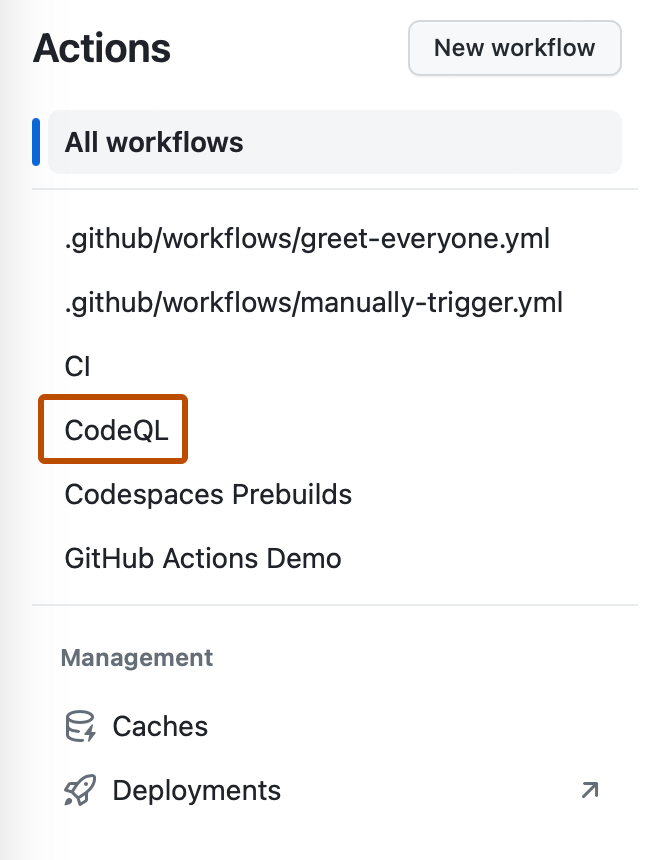
In the left sidebar, click the workflow you want to see.
From the list of workflow runs, click the name of the run to see the workflow run summary.
In the upper-right corner of the workflow, re-run jobs.
Optionally, to enable runner diagnostic logging and step debug logging for the re-run, select Enable debug logging. For more information, see Enabling debug logging.
Click Re-run jobs.
To re-run a failed workflow run, use the run rerun subcommand, replacing RUN_ID with the ID of the failed run that you want to re-run. If you don't specify a run-id, GitHub CLI returns an interactive menu for you to choose a recent failed run.
gh run rerun RUN_ID
To enable runner diagnostic logging and step debug logging for the re-run, use the --debug flag.
gh run rerun RUN_ID --debug
To view the progress of the workflow run, use the run watch subcommand and select the run from the interactive list.
gh run watch
On GitHub, navigate to the main page of the repository.
Under your repository name, click Actions.

In the left sidebar, click the workflow you want to see.

From the list of workflow runs, click the name of the run to see the workflow run summary.
In the upper-right corner of the workflow, select the Re-run jobs dropdown menu, and click Re-run failed jobs.
Optionally, to enable runner diagnostic logging and step debug logging for the re-run, select Enable debug logging. For more information, see Enabling debug logging.
Click Re-run jobs.
To re-run failed jobs in a workflow run, use the run rerun subcommand with the --failed flag. Replace RUN_ID with the ID of the run for which you want to re-run failed jobs. If you don't specify a run-id, GitHub CLI returns an interactive menu for you to choose a recent failed run.
gh run rerun RUN_ID --failed
To enable runner diagnostic logging and step debug logging for the re-run, use the --debug flag.
gh run rerun RUN_ID --failed --debug
On GitHub, navigate to the main page of the repository.
Under your repository name, click Actions.

In the left sidebar, click the workflow you want to see.

From the list of workflow runs, click the name of the run to see the workflow run summary.
Under the "Jobs" section of the left sidebar, next to the job that you want to re-run, click .
Optionally, to enable runner diagnostic logging and step debug logging for the re-run, select Enable debug logging. For more information, see Enabling debug logging.
Click Re-run jobs.
To re-run a specific job in a workflow run, use the run rerun subcommand with the --job flag. Replace JOB_ID with the ID of the job that you want to re-run.
gh run rerun --job JOB_ID
To enable runner diagnostic logging and step debug logging for the re-run, use the --debug flag.
gh run rerun --job JOB_ID --debug
On GitHub, navigate to the main page of the repository.
Under your repository name, click Actions.

In the left sidebar, click the workflow you want to see.

From the list of workflow runs, click the name of the run to see the workflow run summary.
To the right of the run name, select the Latest dropdown menu and click a previous run attempt.