See which teams and repositories have already enabled features for secure coding, and identify any that are not yet protected.
You can use security overview to see which repositories and teams have already enabled each security feature, and where people need more encouragement to adopt these features.
"Pull request alerts" are reported as enabled only when code scanning has analyzed at least one pull request since alerts were enabled for the repository.
Viewing the enablement of security features for an organization
You can view data to assess the enablement of features for secure coding across repositories in an organization.
On GitHub, navigate to the main page of the organization.
Under your organization name, click the Security and quality tab.
To display the "Security coverage" view, in the sidebar, click Coverage.
Use options in the page summary to filter results to show the repositories you want to assess. The list of repositories and metrics displayed on the page automatically update to match your current selection. For more information on filtering, see Filtering alerts in security overview.
For AI Scan for pull requests, the summary shows the number of repositories where the feature is enabled or not enabled, and the repository list shows each repository's status. An enabled status reflects effective enablement after enterprise policy, organization configuration, prerequisites, and any repository opt-out are applied. A not enabled status can include repositories that are ineligible for AI Scan, and security overview does not distinguish the reason why the feature is not enabled.
Click NUMBER enabled or NUMBER not enabled in the header for any feature to show only the repositories with that feature enabled or not enabled.
At the top of the list of repositories, click NUMBER Archived to show only repositories that are archived.
Click in the search box to add further filters to the repositories displayed.
Viewing the enablement of features for secure coding in an enterprise
You can view data to assess the enablement of security features across organizations in an enterprise.
Navigate to GitHub Enterprise Cloud.
In the top-right corner of GitHub, click your profile picture.
Depending on your environment, click Enterprise, or click Enterprises then click the enterprise you want to view.
At the top of the page, click the Security and quality tab.
To display the "Security coverage" view, in the sidebar, click Coverage.
Use options in the page summary to filter results to show the repositories you want to assess. The list of repositories and metrics displayed on the page automatically update to match your current selection. For more information on filtering, see Filtering alerts in security overview.
For AI Scan for pull requests, the summary shows the number of repositories where the feature is enabled or not enabled, and the repository list shows each repository's status. An enabled status reflects effective enablement after enterprise policy, organization configuration, prerequisites, and any repository opt-out are applied. A not enabled status can include repositories that are ineligible for AI Scan, and security overview does not distinguish the reason why the feature is not enabled.
Click NUMBER enabled or NUMBER not enabled in the header for any feature to show only the repositories with that feature enabled or not enabled.
At the top of the list of repositories, click NUMBER Archived to show only repositories that are archived.
Click in the search box to add further filters to the repositories displayed.
Tip
You can use the owner filter in the search field to filter the data by organization. For more information, see Filtering alerts in security overview.
Viewing enablement trends for an organization
You can view data to assess the enablement status and enablement status trends of security features for an organization.
On GitHub, navigate to the main page of the organization.
Under your organization name, click the Security and quality tab.
In the sidebar, under "Insights," click Enablement.
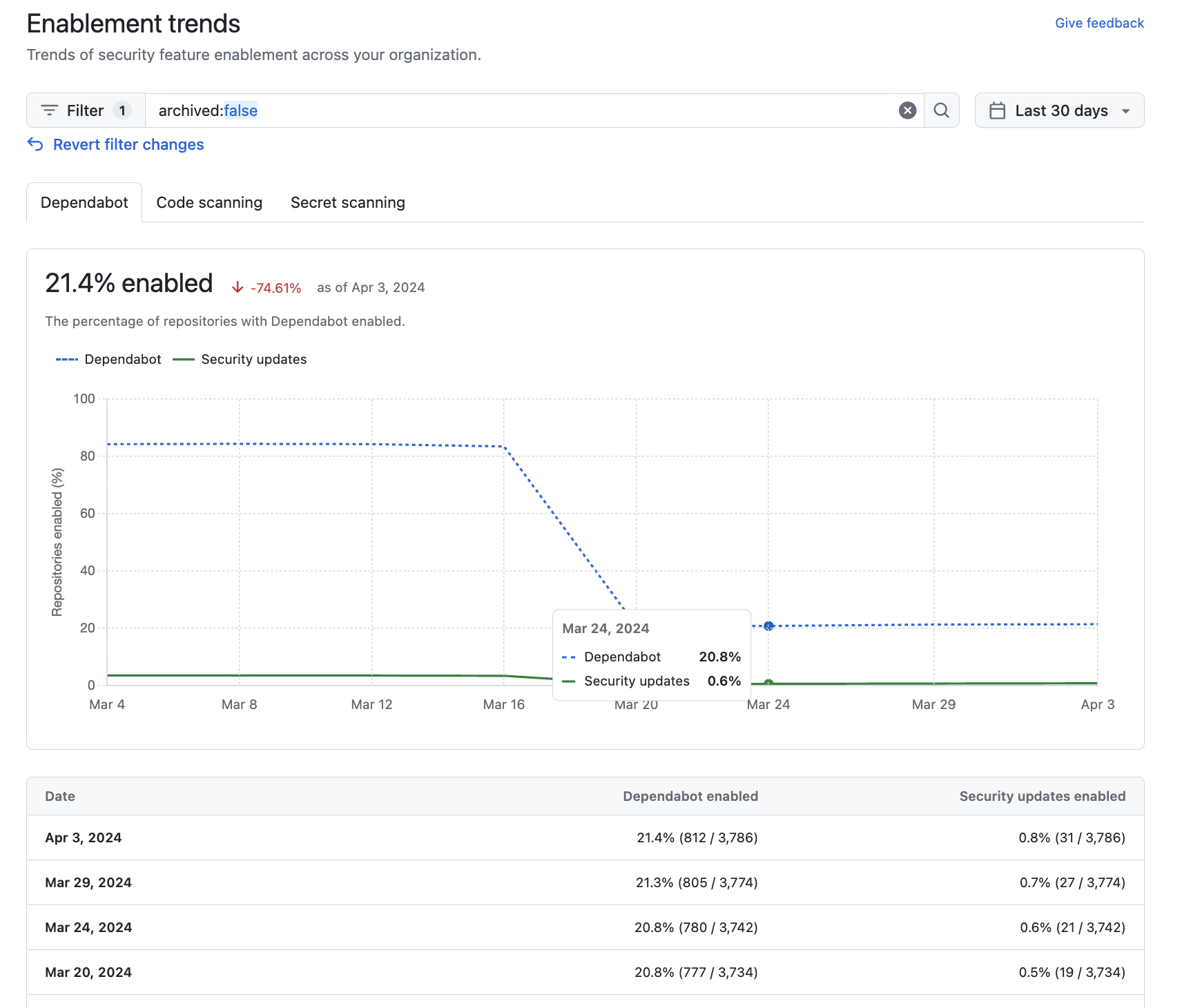
Click on one of the tabs for "Dependabot," "Code scanning," or "Secret scanning" to view enablement trends and the percentage of repositories in your organization with that feature enabled. This data is displayed as a graph and a detailed table.
Optionally, use the options at the top of the "Enablement trends" view page to filter the group of repositories you want to see enablement trends for.
Use the date picker to set the time range that you want to view enablement trends for.
Click in the search box to add further filters on the enablement trends displayed. The filters you can apply are the same as those for the "Overview" dashboard view. For more information, see Filtering alerts in security overview.
Viewing enablement trends for an enterprise
You can view data to assess the enablement status and enablement status trends of security features across organizations in an enterprise.
Navigate to GitHub Enterprise Cloud.
In the top-right corner of GitHub, click your profile picture.
Depending on your environment, click Enterprise, or click Enterprises then click the enterprise you want to view.
At the top of the page, click the Security and quality tab.
To display the "Enablement trends" view, in the sidebar, under "Insights", click Enablement.
Click on one of the tabs for "Dependabot," "Code scanning," or "Secret scanning" to view enablement trends and the percentage of repositories across organizations in your enterprise with that feature enabled. This data is displayed as a graph and a detailed table.
Optionally, use the options at the top of the "Enablement trends" view page to filter the group of repositories you want to see enablement trends for.
Use the date picker to set the time range that you want to view enablement trends for.
You can use the `owner:` filter in the search field to filter the data by organization. For more information, see [Filtering alerts in security overview](/en/code-security/how-tos/manage-security-alerts/remediate-alerts-at-scale/filtering-alerts-in-security-overview).
Acting on enablement data
After you have reviewed enablement coverage, consider the following actions.
For example, secret scanning alerts and push protection reduce the risk of a security leak no matter what information is stored in the repository. If you see repositories that don't already use these features, you should either enable them or discuss an enablement plan with the team who owns the repository.
For other features, consider whether the feature should be enabled in more repositories. For example, there would be no point in enabling Dependabot for repositories that only use ecosystems or languages that are unsupported. As such, it's normal to have some repositories where these features are not enabled.
Next steps
You can download a CSV file of the data displayed on the "Security coverage" page. This data file can be used for efforts like security research and in-depth data analysis, and can integrate easily with external datasets. See Exporting data from security overview.